
1
Choose your plan
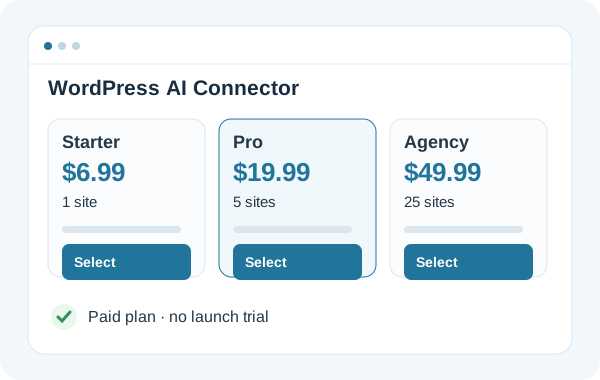
Sign in to AppsToAI, select Starter, Pro or Agency and complete payment. Access follows your purchased plan; there is no launch trial.
WordPress AI Connector
A visual guide to the paid plan, WordPress Bridge, site authorization and first published-content read.
The Bridge checks WordPress 6.8+, PHP 8.1+, Sodium and HTTPS in production. A missing requirement is explained inside WordPress. Install the Bridge, confirm your website, and allow read-only access. No API keys or configuration-file edits.
One AppsToAI account, your WordPress Bridge and an authorized AI client. Follow the illustrated guide for the complete setup.
Sign in to AppsToAI, select Starter, Pro or Agency and complete payment. Access follows your purchased plan; there is no launch trial.
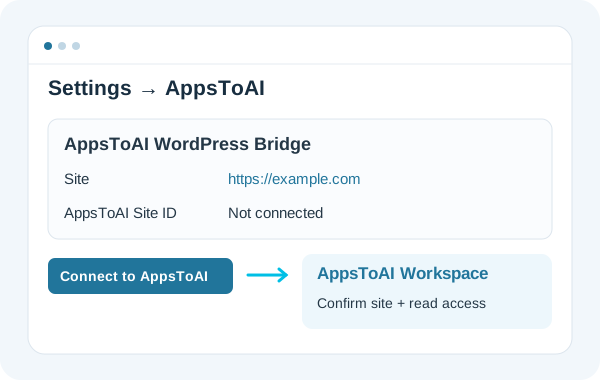
Download WordPress Bridge. In WordPress, open Plugins → Add New → Upload Plugin. Install and activate this ZIP. Open Settings → AppsToAI, click Connect to AppsToAI, and confirm this Workspace. Return to Settings → AppsToAI and click Allow read-only access. Your website will appear below.
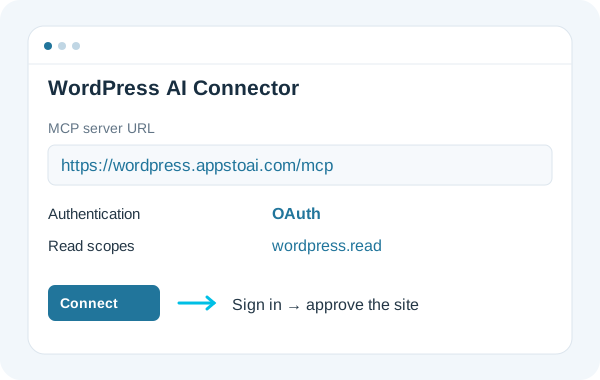
Connect your AppsToAI account and authorize the Workspace containing your websites. WordPress administrator credentials stay on your website. Public ChatGPT installation is being prepared. The custom MCP connection is for authorized testing; directory availability depends on OpenAI review.
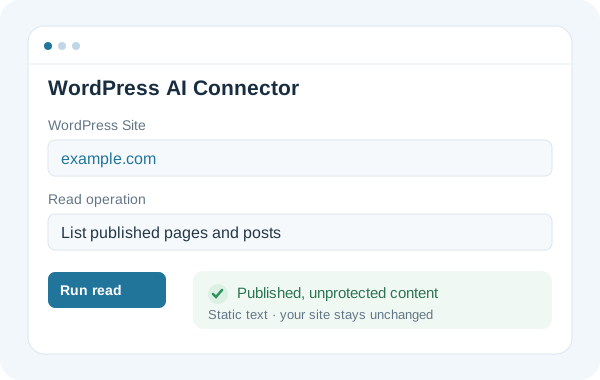
Open WordPress AI Connector in your Dashboard, select the connected site and list, search or read published content. Once your AI client is authorized, ask it to use the available WordPress read tools.
WordPress AI Connectorhttps://wordpress.appstoai.com/mcpOAuthappstoai-wordpress-chatgptnonewordpress.read wordpress.jobs.readConnect your AppsToAI account and authorize the Workspace containing your websites. WordPress administrator credentials stay on your website. Public ChatGPT installation is being prepared. The custom MCP connection is for authorized testing; directory availability depends on OpenAI review.
Start in the Dashboard with “List published pages and posts”. Then try a search or use an item ID returned by the list. In an authorized AI client, try:
List the published pages and posts on my connected WordPress site.
Check the selected Workspace, paid access and the completed Bridge pairing. A payment alone does not connect a WordPress site.
Return to Settings → AppsToAI, continue the browser confirmation and check outbound HTTPS and WordPress scheduled tasks.
Check the site heartbeat, Bridge version, administrator read opt-in and current site authorization. Retry once connectivity is restored.
Confirm that it is a published, unprotected post or page. The current read list shows its first page, up to 20 items.
Verify the MCP URL, the registered client ID and the exact callback URL shown by ChatGPT. Reconnect and approve the correct AppsToAI account and site.
Only approved published content is read after administrator opt-in. Private keys stay in WordPress. Connection health reports contain runtime and capability information. Removing AI authorization or disconnecting the service stops permitted access; removing the Bridge preserves your posts, pages and media. Contact support for connection removal if no account control is available.
Each connector has its own subscription. Manage WordPress plan changes and cancellation from its Dashboard plan section. Review the price and effective timing before approving a change in PayPal. Cancellation at period end follows the paid subscription terms.